Science (3DMol)
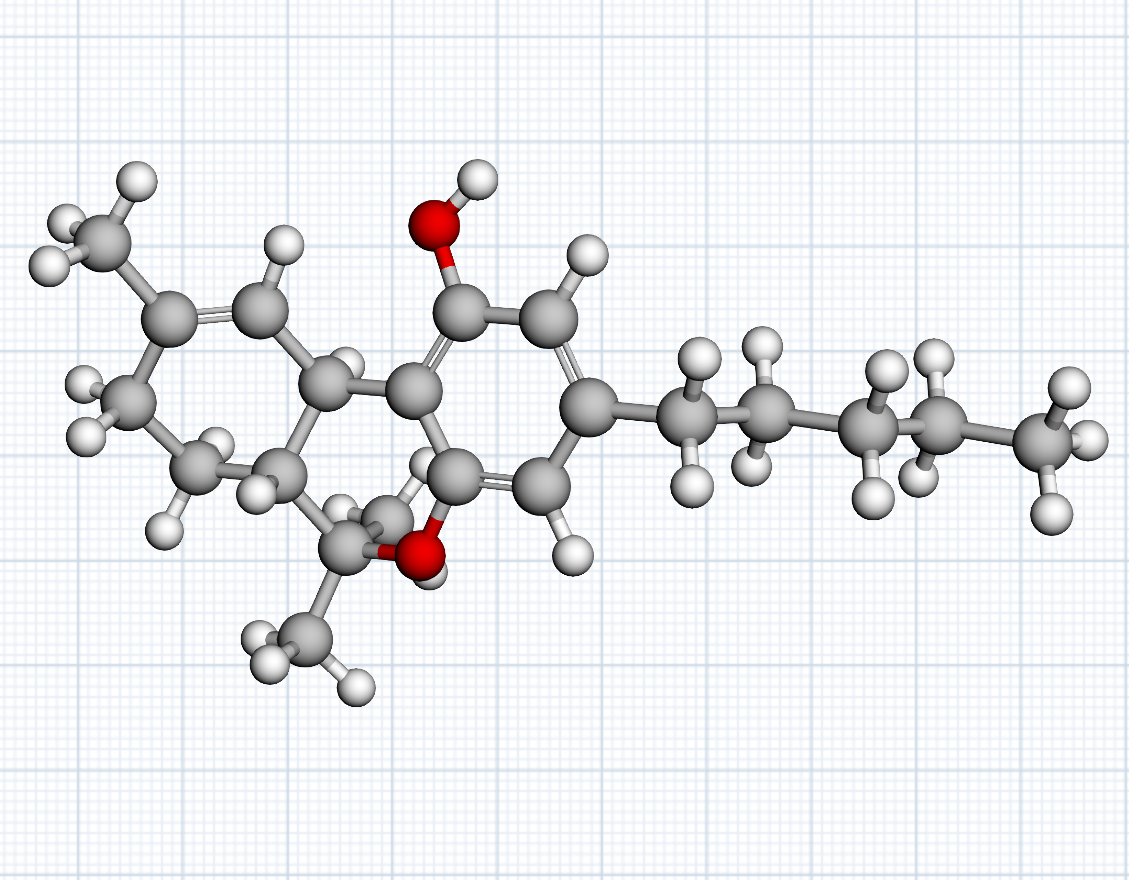
Right-click → Science → 3DMol drops a molecular structure rendered with 3Dmol.js directly on the board — a live WebGL scene you can spin with the mouse, with no bubble or chrome around it (like a Chart). It pans and zooms with the canvas like every other item.
Off by default. 3DMol is a newer feature and doesn’t appear in the right-click menu until you switch it on: open the hamburger menu (top-left) → Features and toggle 3DMol under Science. The change applies on your next right-click.
Three ways to name a structure
One source box accepts all three, auto-detected — you don’t pick a format:
- SMILES —
CC(=O)Oc1ccccc1C(=O)O(aspirin). The “write a string, see the result” path, the molecular analogue of ABC notation or LaTeX. - A pasted coordinate file — PDB, MDL molfile/SDF, XYZ, MOL2 or CIF. Paste the file’s contents straight in.
- A database lookup —
pdb:1CRNfetches from RCSB,cid:2244from PubChem.
SMILES becomes 3D on your own machine. A SMILES string encodes only which atoms are bonded to which — not where they sit in space — so the coordinates have to be computed. Brainstorm does that locally in a background thread, which keeps the canvas responsive while a flexible molecule is worked out (a few milliseconds for caffeine, a few seconds for something like cholesterol). The same SMILES always renders the same conformation, for you and for anyone you share the board with.
Display styles
A hover toolbar carries a style dropdown: Ball & stick, Stick, Space-filling, Wireframe, Cartoon, and Surface. Your choice is remembered on the item.
Left untouched, the style picks itself: a spectrum cartoon for macromolecules (plus sticks for ligands and ions, which have no cartoon form), ball-and-stick for small molecules. So a SMILES you later edit into a pasted PDB restyles itself to suit.
On the board
The body of a molecule belongs to the camera — a left-drag spins the structure, and the wheel over it is 3Dmol’s own zoom. So the controls that would otherwise want a drag live in the hover toolbar instead:
- ⠿ move grip — drag it to move the item on the board. This is the one place this item’s chrome differs from the other bare-on-board items.
- A hover corner grip resizes it. Unlike a chart’s auto-height SVG, a WebGL scene needs real pixel dimensions, so both axes resize freely.
- A hover × removes it, and the ⚓ badge pins it in place. Pinned, the grip pans the board while the structure stays live and spinnable.
Editing
✎ Edit in the toolbar (or a double-click on the toolbar) opens the floating source editor — the same one the Chart and KaTeX items use. Submit (the button or Ctrl/Cmd+Enter) re-renders; submitting an empty editor removes the item. A brand-new molecule opens straight into the editor.
Invalid input renders an inline error with the parser’s own message and
position — SmilesParser: dangling ring closure: 1; position:7 — so you can fix
the string and re-submit.
The editor carries the 🪄 magic wand: describe the
molecule you want (“caffeine”, “the SMILES for ibuprofen”) — or paste a
structure to correct — and the configured LLM streams it into the editor. The
wand is steered toward SMILES, since models write it reliably and it always
renders, whereas a guessed PDB id may fetch nothing. A #> marker flags a
targeted edit for the wand to apply rather than rewriting everything.
Ask the LLM about a structure
Every molecule has an orange + on its bottom edge (revealed on hover, like the code cells’). Clicking it opens the chat composer just below the structure — ask what you like (“what functional groups are in this?”, “how does this bind?”) and Send:
- The question drops as a normal chat turn, answered beneath, and a Bézier connector joins the structure to your message.
- The source is not pasted into the message — the bubble stays just your question. Instead the structure’s current source is invisibly attached to the LLM request, exactly like the formula chat and linked images. Because it’s resolved at request time, editing the molecule and regenerating the answer asks about the up-to-date structure.
- Hover the connector and click its × to detach — the message becomes an ordinary chat bubble and stops carrying the structure.
Persistence
A molecule persists inline in the board document as a "molecule" record
carrying its source and display style, so it’s synced to collaborators,
undoable, anchorable, and round-trips through disk export/import
like every other overlay. The structure→chat link persists the same way. 3Dmol
itself is loaded on demand the first time a structure renders, so it stays
out of the app’s main bundle.