Boards
Brainstorm keeps as many boards as you like. Each board is a fully independent canvas with its own bubbles, code cells, images, drawings, and viewport.
Switching and managing boards
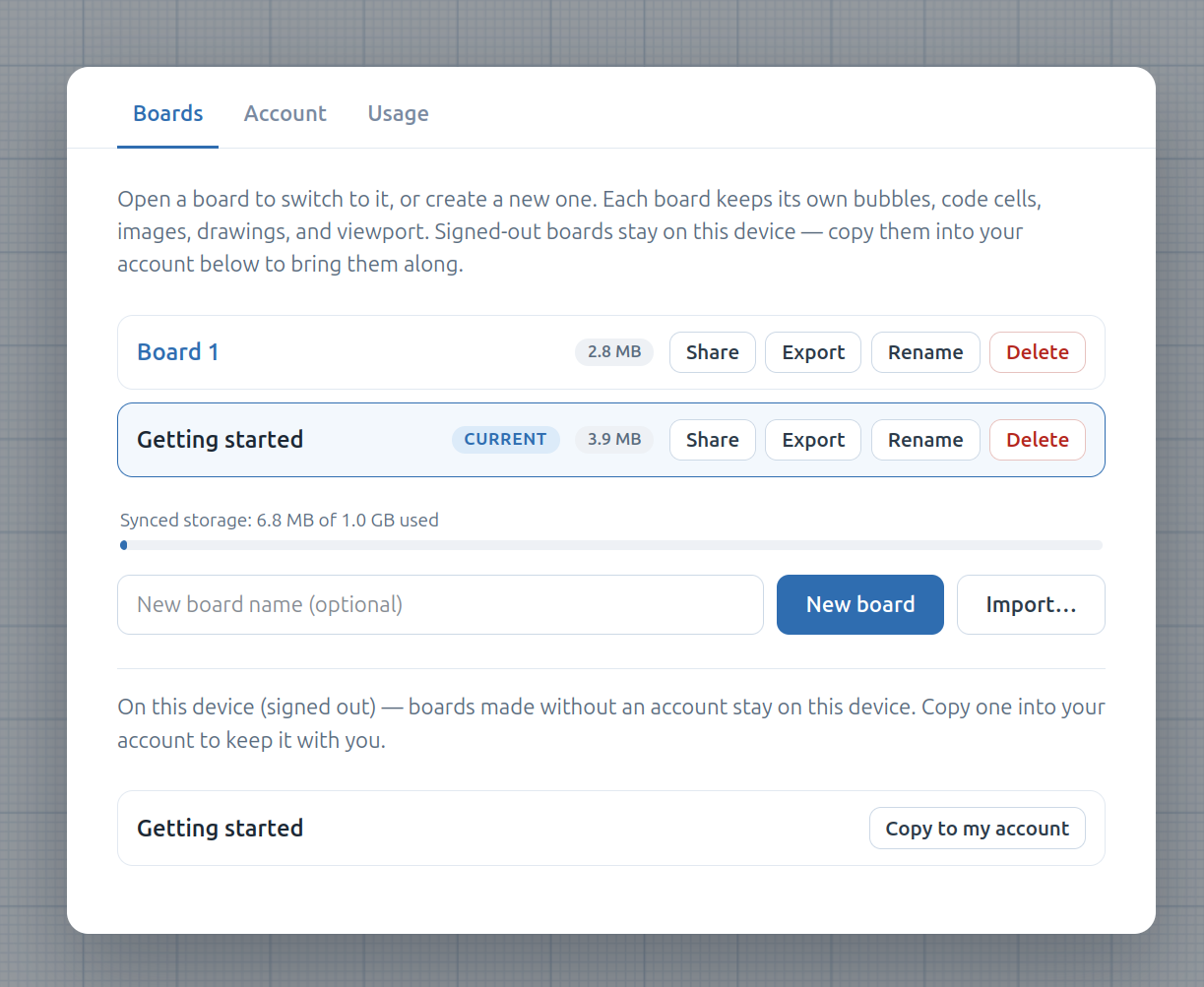
Open the hamburger menu (top-left). The modal has three tabs: Boards, Account, and Usage.
In the Boards tab you can:
- Open a board — click it to switch (the app reloads into that board).
- New board — create a fresh canvas and jump straight into it.
- Rename or Delete an existing board.
- Export a board to a JSON file, or Import one back in.
The current board is badged, and it can’t be deleted out from under you — deleting the last remaining board just leaves a fresh empty one.
Where boards live
Boards are stored in your browser — a small index (names plus which board is open) and each board’s contents in IndexedDB; see Persistence for details. Without Plus, that’s the whole story: nothing leaves your device, whether you’re signed out or on a free account.
With a Plus subscription, your boards also sync to the cloud, so they appear on your other devices (open the Boards tab there to pull them down). Boards other people have shared with you show up in the same tab under Shared with me. See Collaboration.