Audio
The Audio submenu of the right-click menu puts sound on the board three ways: Load audio — a clip from disk in a waveform player, Record audio — capture straight from the microphone, and Music notation — sheet music written in ABC notation that can be engraved, generated by the LLM, and rendered to a playable clip.
Off by default. The Audio items are newer features and don’t appear in the right-click menu until you switch them on: open the hamburger menu (top-left) → Features and toggle Load audio, Record audio, and/or Music notation under Audio. The change applies on your next right-click.
Audio bubbles
Right-click → Audio → Load audio picks an audio file and drops it as an audio bubble: a wavesurfer.js waveform with a transport row — ▶/⏸ play-pause, the current / total time, and ⭳ to download the file — in the same chrome as code cells (a draggable header, a bottom-right resize grip, an × to remove, and an ⚓ badge to pin). It pans and zooms with the canvas and plays inline; click the waveform to seek.
Recording from the microphone
Right-click → Audio → Record audio drops an on-board recorder at the click point: a live microphone waveform with a ⏺ Record / ⏹ Stop button. On Stop the captured take becomes a regular audio bubble at the same spot — a “voice post-it” you can replay, move, and link like any other clip. The × cancels without keeping anything. (Your browser will ask for microphone permission the first time.)
Music notation
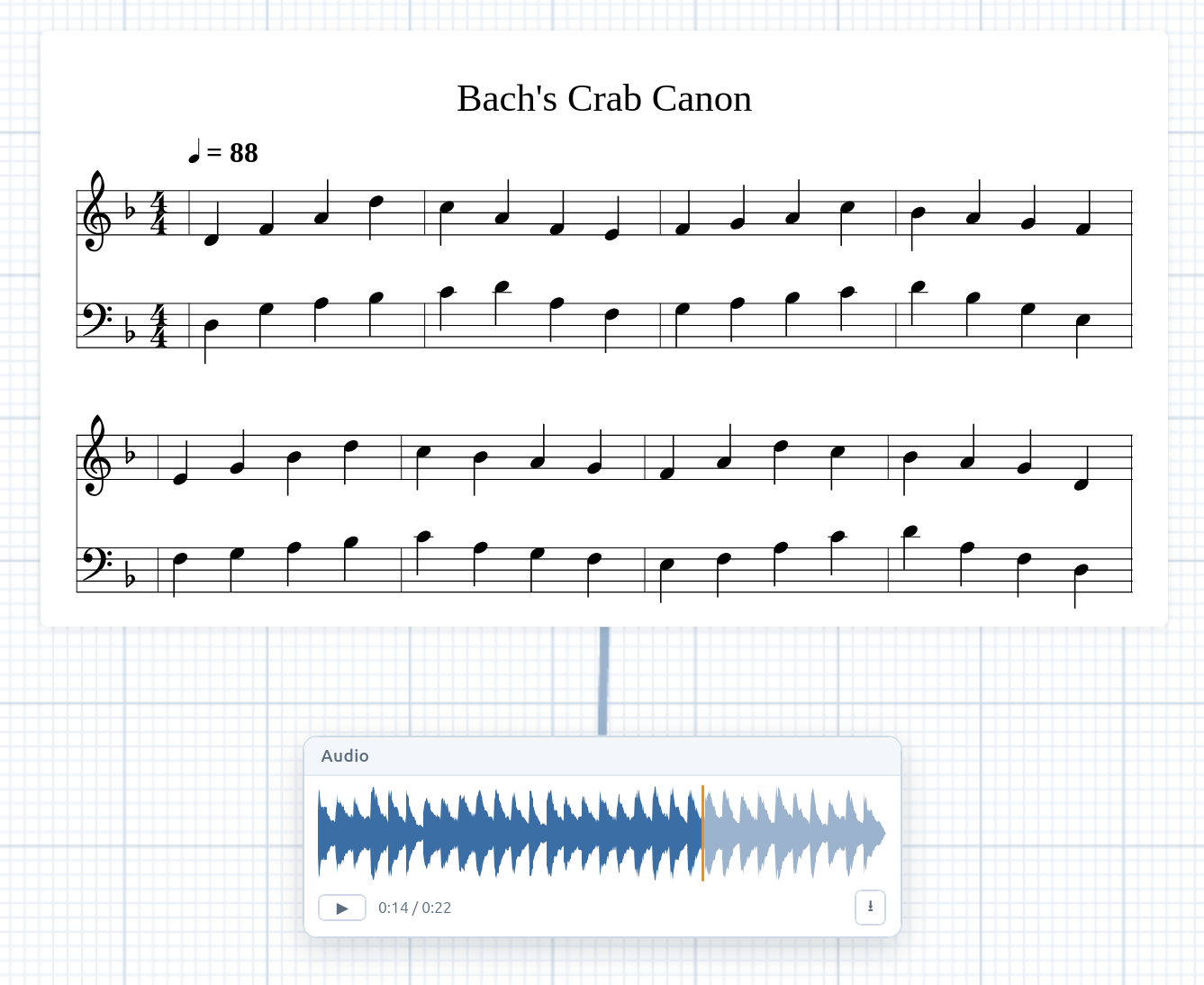
Right-click → Audio → Music notation drops a tune engraved as sheet music, written in ABC notation and rendered by abcjs directly on the board — just the engraving, no bubble or chrome around it (like a Chart). It drags to move, resizes from a hover corner grip (scaling like an image), and carries the usual hover × and ⚓ badges.
Double-click the sheet to edit it: a floating source editor opens over
it (monospace, line-numbered — the same editor as the Chart’s) where you write
ABC — the X: / T: / M: / L: / K: headers, then the tune body.
Submit (the button or Ctrl/Cmd+Enter) re-engraves; submitting an empty
editor removes the item. Parser warnings surface in a small status chip, and an
invalid tune shows an inline error you can fix and re-submit.
The editor carries the 🪄 magic wand: describe the
tune you want (“a lively jig in D”, “a slow air in 3/4”, “harmonize this in two
voices”) — or paste ABC to improve — and the configured LLM streams the
notation straight into the editor. A %> comment marks a targeted edit for
the wand to apply rather than rewriting everything. LLMs are genuinely good at
ABC, so this is the fastest way to put real music on the board.
Hearing the tune, and asking about it
The orange + on the sheet’s bottom edge opens a small menu:
- Render audio synthesizes the tune — real soundfont instruments, honouring
the
Q:tempo,%%MIDI programinstrument choices, and multipleV:voices — into a WAV clip dropped as an audio bubble beneath the sheet, joined by a Bézier connector. That bubble is where playback lives. Re-rendering after an edit replaces the clip; detach the connector (hover-×) to keep a take the sheet won’t overwrite. - Chat opens the chat composer just below the sheet (“Ask about the tune”). Your question drops as a normal chat turn, and the tune’s current ABC source is invisibly attached to the LLM request — the visible message stays just your question, and a Bézier joins sheet → message.
Audio in code cells
Audio clips are data, like linked images and videos:
- Into a cell — click a clip’s orange + to spawn a Python cell below
that reads it, or drag the + onto an existing cell to link it in
(green connector, hover-× to detach). Before a run, each linked clip —
including ones inherited from ancestor cells — is written into the kernel
filesystem and exposed through an auto-injected
AUDIOdict, soscipy.io.wavfile.read(AUDIO["audio1"])just works (scipy ships with the in-browser kernel). Note that microphone recordings are captured as WebM/Opus — they play in the browser, but load WAV files for kernel analysis. - Out of a cell — any audio file a run writes to disk (
.wav,.mp3,.ogg,.flac, …) is surfaced as its own audio bubble to the right of the cell, joined by a Bézier: synthesize a signal with numpy, write it withscipy.io.wavfile.write("out.wav", rate, samples), and it’s playable on the board. Re-runs replace the cell’s output clips; detach the connector to keep one.
Storage & sync
Audio bytes are stored locally in your browser (IndexedDB) and referenced from the board by id — clips survive reloads and ride along in board export / import files. For Plus subscribers the bytes also sync through the cloud (content-addressed, like images and video), so collaborators and your other devices hear the same clips. See Persistence.