Documents & spreadsheets
Right-click → Office → Document drops a rich-text document, and → Office → Spreadsheet drops a spreadsheet. Both come with a full editing UI — toolbar, formula bar, and the rest — mounted right on the canvas. The same Office menu also drops an event calendar.
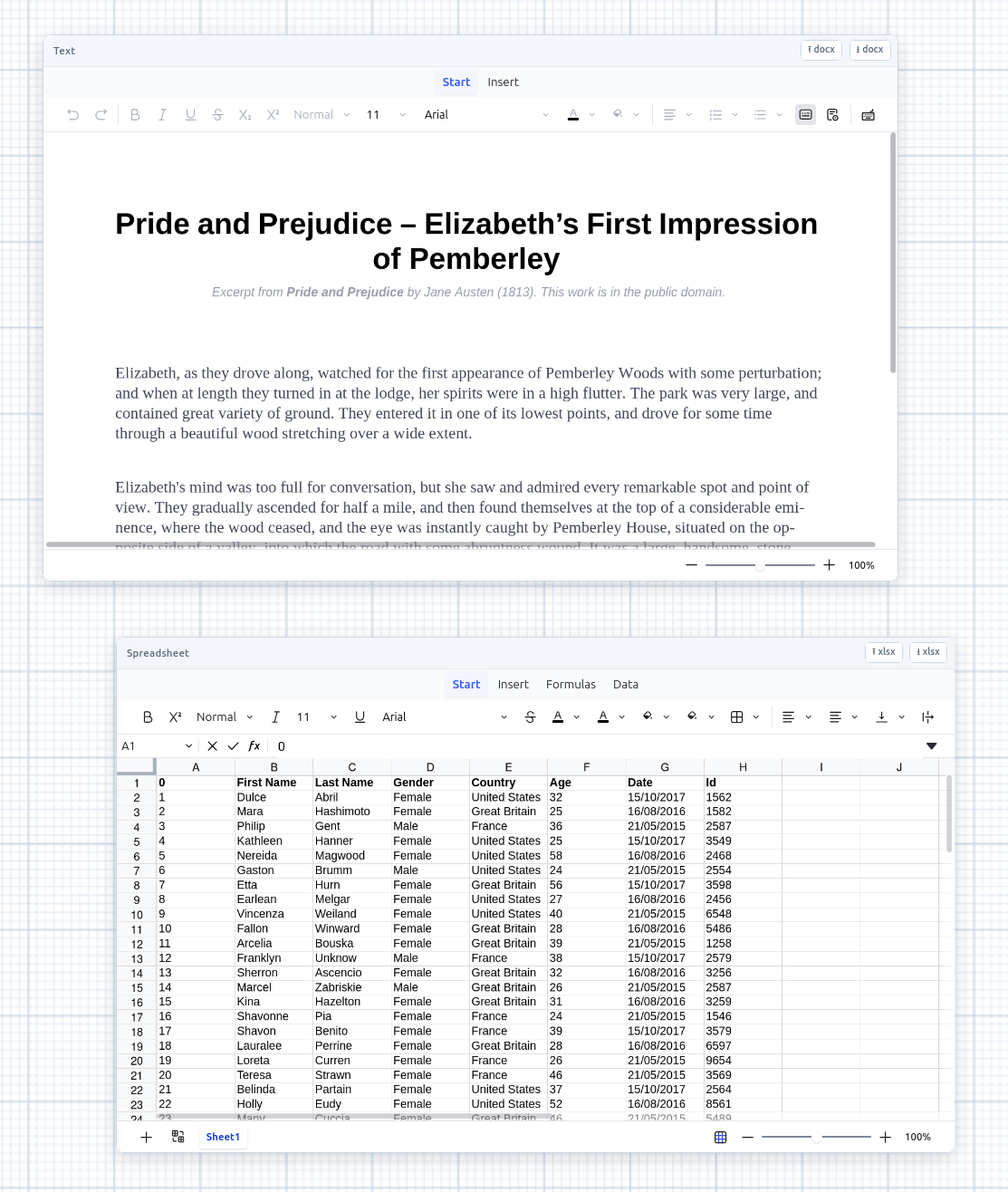
On the board
Each editor is wrapped in the same chrome as code cells:
- A draggable header (the title bar), a bottom-right resize grip, and an × to remove it.
- It pans and zooms with the canvas like every other overlay.
- Edits save automatically through the same as-you-go mechanism as everything else — there’s no manual save. The content is stored as the editor’s own snapshot in the board, and restored by rebuilding the workbook or document from it. See Persistence.
Import and export
Both kinds import and export entirely client-side — there’s no server involved. Each editor’s header has ⭱ import and ⭳ export buttons:
- Spreadsheets ↔
.xlsx— import replaces the sheet’s contents; export downloads an.xlsx. - Documents ↔
.docx— round-trips basic formatting: bold, italic, underline, strikethrough, headings (h1–h6), and bullet / ordered lists. Tables, images, colors, and fine spacing don’t survive the round-trip.
Calendars
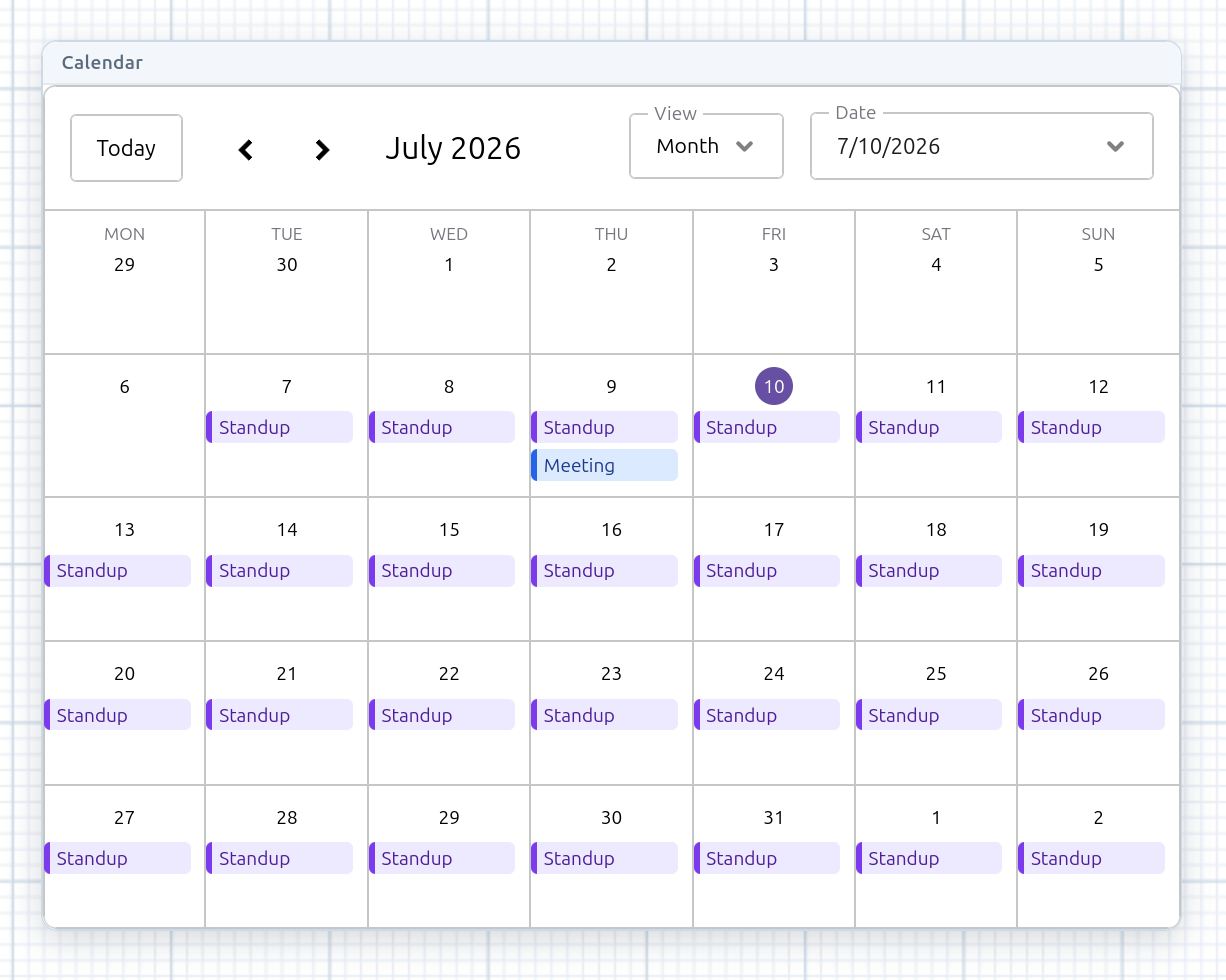
Right-click → Office → Calendar drops an event calendar on the board, wrapped in the same chrome (draggable header, resize grip, ×) and panning/zooming with the canvas. It ships month / week / day / agenda views — switchable from the calendar’s own toolbar, with today / prev / next — a live current-time line, and drag-and-drop.
- Add an event — double-click a day (month view) or a time slot (week/day view) to open the event editor: title, all-day toggle, start/end date & time, category, location, description, and a repeat rule.
- Edit / delete — click an event to reopen the editor (with a Delete button); drag or resize a one-off event to move it right on the grid.
- Color categories — events are color-coded by category (General / Work / Personal / Important).
- Recurrence — Daily / Weekly / Monthly / Yearly, stored as an iCalendar
RRULE(recurring events are edited from the modal rather than dragged).
Events persist inline in the board and sync / undo like everything else, so they round-trip through disk export/import.
Spreadsheets as code-cell data
Every spreadsheet has its own orange +. Click it to spawn a
code cell that already reads the
sheet, or drag from it onto an existing cell to link the sheet in as a data
source. Linked sheets are handed to Python through an auto-injected SHEETS dict,
re-materialized on every run so the kernel always sees the current contents.